

Troubleshooting Process for CBNAAT
ContentThe most common situations that need troubleshooting while using CBNAAT are:
- Hardware or instrument problems
- Failures without error codes
- Failures with error codes
Troubleshooting Approach
- In case of an issue, a message will be displayed (often with an error code).
- Check if the error affects one particular module.
- Refer to the CBNAAT user manual and follow the recommended corrective action.
If the problem persists, continue to use other modules in the meantime (if possible), and exclude the faulty modules from the tests. Contact the technical support team.
How to reach the technical support team?
Image
Resources
Kindly provide your valuable feedback on the page to the link provided HERE
Hardware Problems with the CBNAAT Machine
ContentCommon hardware problems that can occur while using the CBNAAT machine and their recommended solutions are listed below.
- The system does not start - The instrument power connections can be checked.
- Hardware failure - The system can be turned off and software can be updated.
- The CBNAAT modules are not detected - Network cable can be connected, the software can be re-launched, IP address can be reset.
- The barcode scanner is not working - Re-plug the scanner into the computer.
- The red light on the instrument module is blinking - Perform a self-test manually and call technical support if the problem persists.
- The cartridge is stuck in the module - Click on ‘Maintenance’ on the CBNAAT system window, choose ‘Open module door or update EEPROM’ and ‘Open door’ to open the module door. Call technical support if the problem still exists.
- The test report is not printed at the end of the run - Check if the printer is online, paper is present, and toner is okay.
- Unable to create a test - Check that the assay is selected, assay dyes are calibrated, modules are not disabled, and the module temperature is checked.
- Unable to start a test - Check module reporters in the maintenance window, assay reporter is present and calibration status is valid.
Resources
Kindly provide your valuable feedback on the page to the link provided HERE
CBNAAT Hardware Problem: Barcode Scanner Failure
ContentIf the barcode scanner is not working, enter the cartridge barcode manually (Figure):
- Step 1: Click on “Create Test”
- Step 2: A dialogue box - Scan Cartridge Barcode will appear. Click on “Manual Entry”
- Step 3: Manually type the 2-line numbers of the cartridges
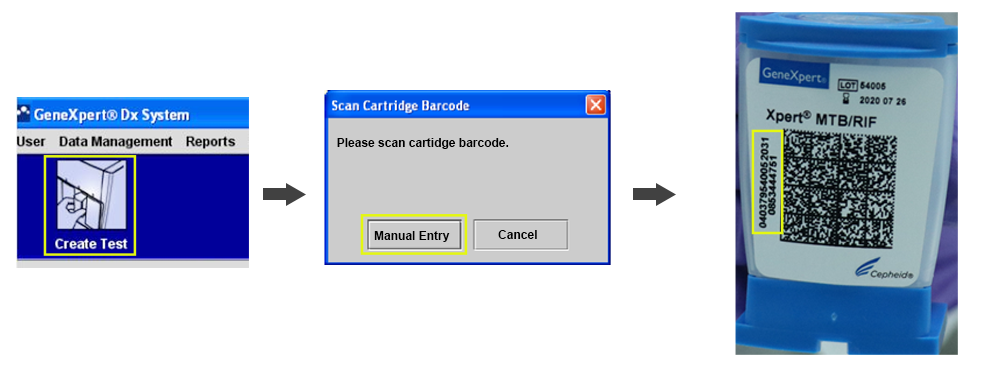
Figure: Process for Manual Entry of the Cartridge Barcode
In case of barcode reader failure, while using a new lot, this action cannot be performed. Contact the manufacturer or technical support to collect the Lot Specific Parameter.
Also, contact customer care for repair or replacement of the barcode reader.
Video fileResources
CBNAAT Hardware Problem: Stuck Cartridge
ContentThis hardware problem occurs when a cartridge is stuck inside a CBNAAT module.
Causes
- Module mechanical malfunction during the test
- Electrical failure
Solutions for releasing a stuck cartridge
Solution 1: Verify that the module door is not open. Gently try to open the module door.
Solution 2: Try to remove the cartridge from the software.
- In the CBNAAT System window, click ‘Maintenance’ on the menu bar and select ‘Open Module Door or Update EEPROM’ (see the figure below).
- Select the module. Click “Open Door” to open the module door.
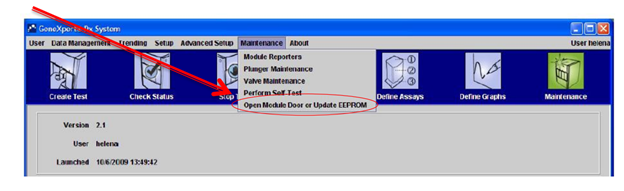
Figure: CBNAAT system showing ‘Open Module Door’ and ‘Perform Self-Test’

Solution 3: If the door does not open, close the software, and re-launch the software.
When the software is re-launched, the module will reinitialize itself by putting the valve and the syringe in the correct position. This may help to open the door.
Solution 4: Turn the system off and restart the CBNAAT instrument and software.
Solution 5: In the CBNAAT system window, choose ‘Maintenance’ on the menu bar and select ‘Perform Self-Test' (see figure above).
Solution 6: If none of the solutions above work, manually remove the cartridge.
If the cartridge is not released, contact technical support, to manually remove the cartridge. If you are a senior lab supervisor, you may click here to see the steps to manually remove a stuck cartridge.
Video fileVideo : CBNAAT Hardware Problem: Stuck Cartridge
Resources
CBNAAT Hardware Problem: Modules Not Detected
ContentOne of the common problems encountered while using the CBNAAT machine is the non-detection of the module.
Usually, there is a loss of communication between modules and software, leading to non-detection.
Origins:
- Ethernet connection between Personal Computer (PC) and CBNAAT is bad
- Power supply issue (main power or Universal Power Supply (UPS) fluctuations)
- Bad connection points between gateway board and modules
- Too high room temperature
Solutions:
- Restart the instrument first and then the computer.
- Unplug and re-plug the ethernet cable between the PC and the instrument, then restart as above.
- Secure the power supply and use an adapted UPS/ surge protector.
- Check the temperature inside the module (should be below 39°C).

Figure: Troubleshooting protocol for the non-detection of CBNAAT Module
Video fileVideo : CBNAAT Hardware Problem: Modules Not Detected
Resources
Monitoring Different Types of Errors with CBNAAT
ContentWhile using the CBNAAT machine in a laboratory setting, many different causes can lead to an error (indicated on-screen as ‘ERROR’, as in figure 1).
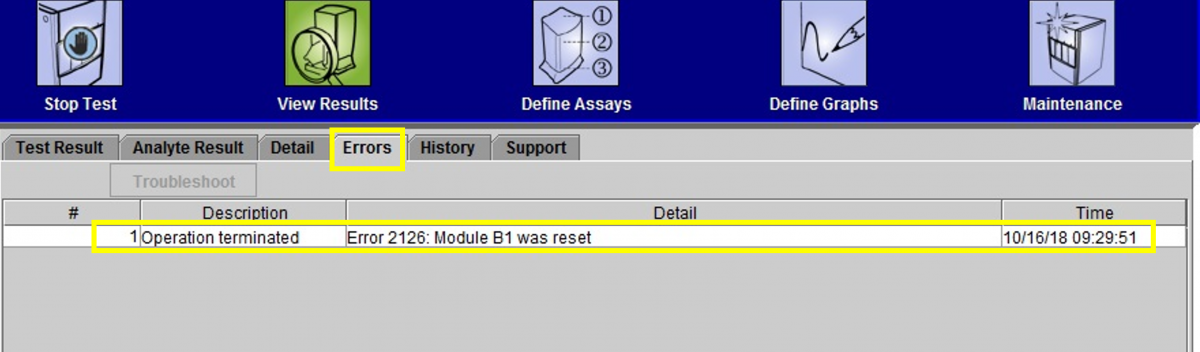
Figure 1: Window showing how to click on “Errors” to learn more about the issue
Error Message Categories
The errors are displayed by the instrument’s software to highlight various technical issues that disrupt the test process. They are grouped into five categories by the software:
- Cartridge loading errors: Errors that occur during a cartridge loading process
- Self-test errors: Errors that occur during the self-test process
- Run-time errors: Errors that occur during a test.
- Operation terminated errors: Errors that abort a test
- Post-run analysis errors: Errors that occur during the data reduction process
You can view the errors by clicking the ‘Check Status’ icon on the CBNAAT software, as seen in figure 2.
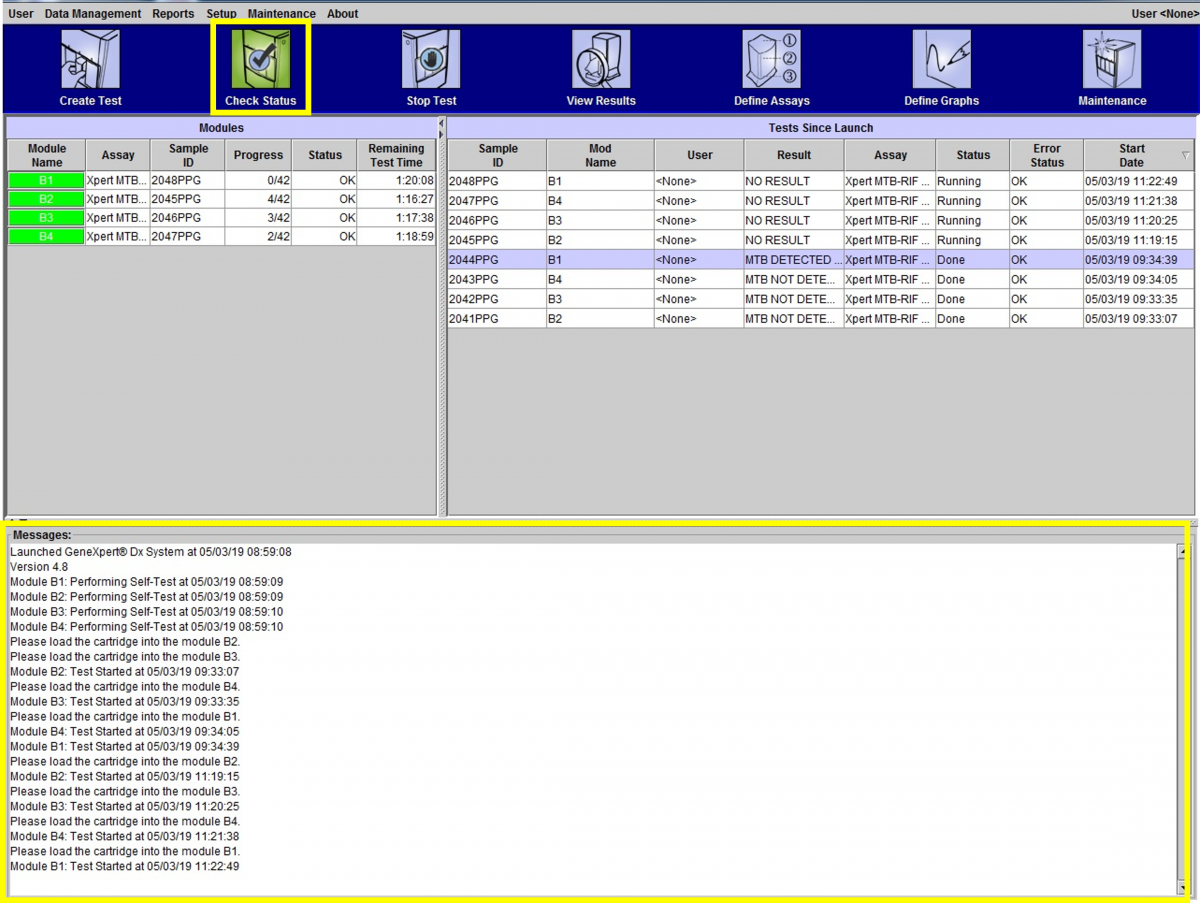
Figure 2: 'Check Status' Window of the CBNAAT Software
Monitoring of Errors and Invalid/ No Results
- Rates of errors and Invalid/ No Results need to be monitored by the module and user.
- Identifying the most frequent types of problems can help to troubleshoot since certain errors may be associated with a user’s technique in sample processing while others with mechanical problems with the instrument modules or room temperature.
- Recurring errors should be timely reported to the manufacturer.

Figure 3: Monitoring of Errors on CBNAAT
Video file
Video : Monitoring Different Types of Errors with CBNAAT
Resources
CBNAAT Troubleshooting: Error- 5006, 5007, 5008 and 5009 [PCC Failed]
ContentErrors 5006, 5007, 5008 and 5009 (Probe Check Control Failed) sometimes appear on the Cartridge-based Nucleic Acid Amplification Test (CBNAAT) machine in TB laboratories and need troubleshooting.
Problem:
Probe Check Control (PCC) failed, and the test was stopped before amplification.

Origins:
- Incorrect storage of cartridges (probe integrity issues detected)
- Dust on optical filters
- Sample too viscous
- Incorrect sample volume
- Improper fluid transfer (bubbles)
Solutions:
- Store the kits between 2 - 28°C.
- Use an optical brush to clean the optical filters (without a cleaning solution).
- Make sure the sample is totally liquified before transferring it to the cartridges.
- Add the correct volume of the specimen.
- Avoid making bubbles.
Video fileVideo : CBNAAT Troubleshooting: Error- 5006, 5007, 5008 and 5009 [PCC Failed]
Video fileVideo : Probe Check Control (PCC)
Resources
CBNAAT Troubleshooting: Error- 2008 and 2009
ContentDuring the use of the Cartridge-based Nucleic Acid Amplification Test (CBNAAT) machine, Error- 2008 and 2009 may appear on the screen and needs troubleshooting.
Problem:
2008: Pressure reading exceeds the maximum
2009: Syringe pressure is below the protocol limit
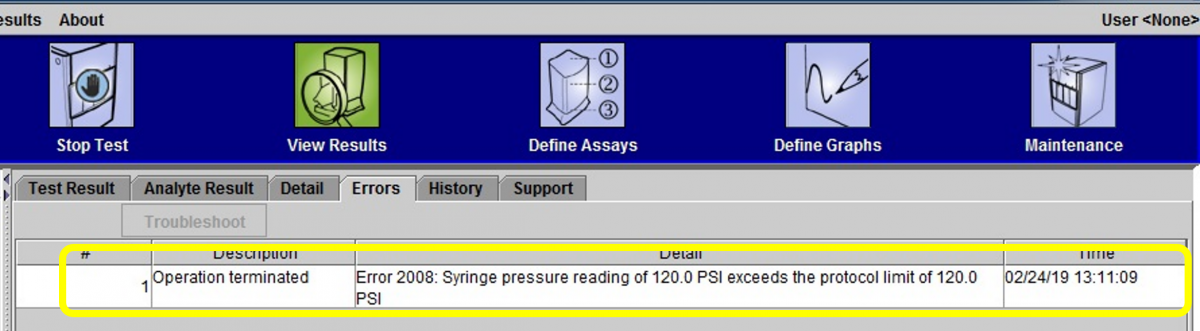
Figure: Error 2008
Origins:
- The cartridge filter is clogged (due to too viscous sample or particles)
- Pressure sensor failed
Solutions:
- Make sure the sample does not contain any solid particles.
- Make sure the sample is totally liquified before transferring it to the cartridges.
- If after 15 minutes of incubation with the sample reagent, the sample is still too viscous, wait up to 10 more minutes.
- Use a new cartridge and add only a sample reagent to test. If the problem persists, it is likely a module problem: Contact Technical Support.
Video fileVideo : CBNAAT Troubleshooting: Error- 2008 and 2009
Resources
CBNAAT Troubleshooting: Error- 2014, 3074, 3075 and 1001 (Heating Component Related Issues)
ContentError - 2014, 3074, 3075 and 1001, in the Cartridge-based Nucleic Acid Amplification Test (CBNAAT) machine are related to ‘Heating Component Related Issues’.
Problem:
Temperature/ Heater Failure
Origins:
- High temperature in module
- Heater component failure
- Broken fan
- Dust on filter near the fan
Troubleshooting:
In the CBNAAT Dx System window:
- Click “Maintenance” on the menu bar
- Select “Module Reporters” to check module temperature

Figure: Troubleshooting Heating Component Related Issues
If the problem persists, one needs to contact the manufacturer for technical support.
Video fileVideo : CBNAAT Troubleshooting: Error- 2014, 3074, 3075 and 1001 [Heating Component Related Issues]
Resources
CBNAAT Troubleshooting: Failures without Error Codes
ContentSome Cartridge-based Nucleic Acid Amplification Test (CBNAAT) machine errors will indicate test failure without Error Codes.
Error: Invalid
Problem:
Sample Processing Control (SPC) failed.
Origin:
Polymerase Chain Reaction (PCR) was inhibited due to food particles or blood in the sample.
Solution:
Laboratory Technician (LT) needs to collect another specimen, if necessary.
Prevention:
- Before mixing with the sample reagent for decontamination, check whether the sample contains food particles or blood.
- Allow food particles to settle down before adding the sample to the cartridge.
If the problem persists, one needs to contact the manufacturer for technical support.
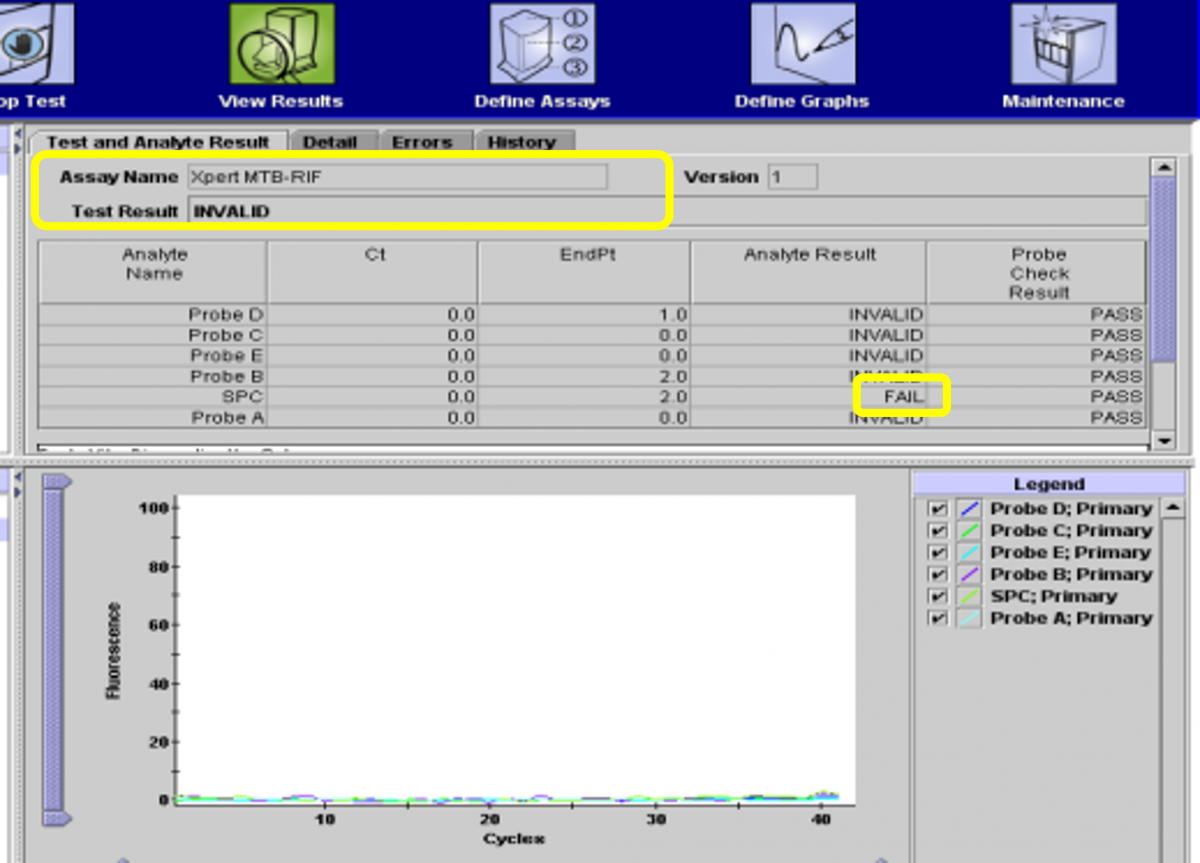
Figure: Error - Invalid
Error: No Result
Problem:
Test could not be completed and insufficient data collected.
Origins:
Software stops working before the test is completed due to:
- Windows or software freeze
- Power failure
- STOP TEST function was activated (accidentally or deliberately)
Solution:
Secure the power supply, restart the machine and repeat the test with a new cartridge.
Contact an authorized service provider if the problem persists.
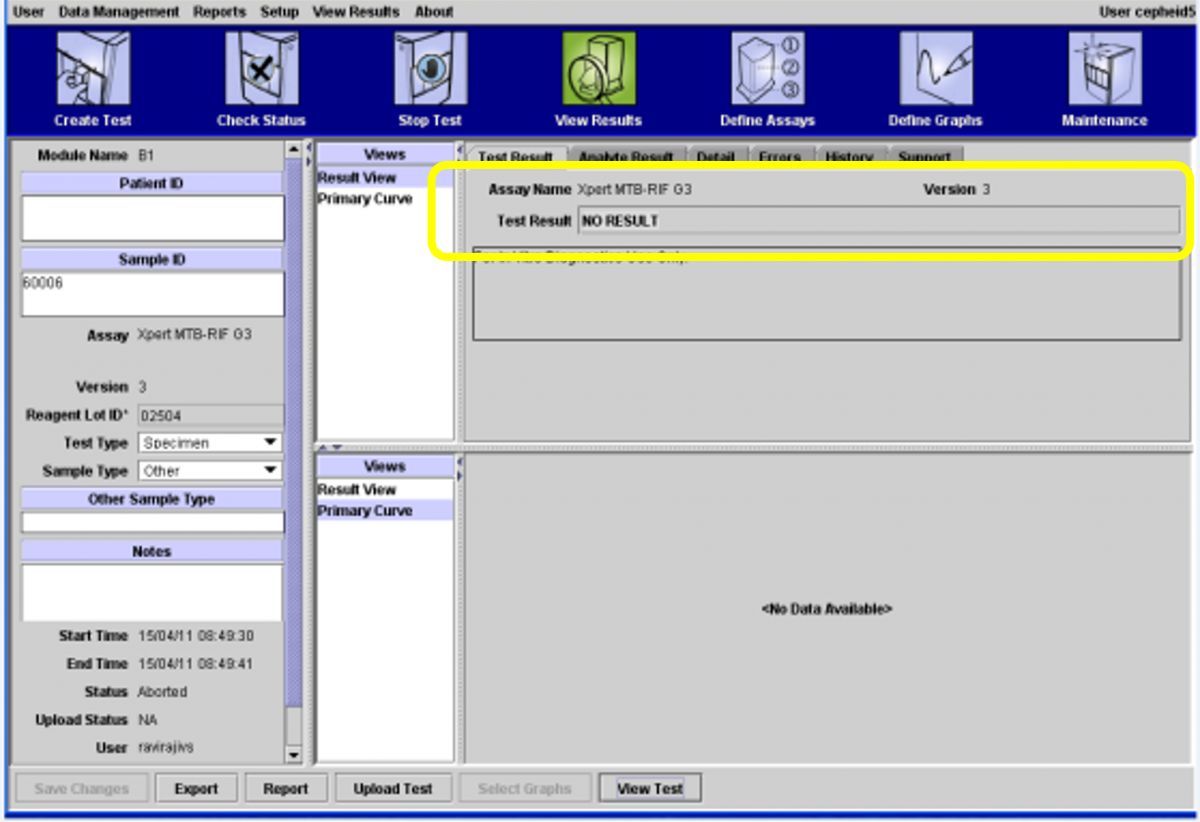
Figure: Error - No Result
Video fileVideo : CBNAAT Troubleshooting: Failures without Error Codes
Resources
Interfering Substances causing errors in NAAT Assay
ContentIt is common in laboratories to see specimens with the following particles which may potentially alter nucleic acid amplification test (NAAT) results:
- Food particles
- Blood
- Tobacco
- Pan
- Debris or tissue pieces
These interfering substances cause failures in Truenat assays and may have inhibitory effects on CBNAAT assays. This interferes with the accuracy of results, leading to false positive or negative tests and delayed cycle threshold values.
Hence, it is important to follow certain precautions when collecting the specimen to avoid contaminating the specimen with these substances.
In such situations, the following protocol needs to be followed:
- Reject frank blood/bloody samples; however, the presence of blood up until 30% does not interfere in Truenat assays
- For samples containing food/tobacco/tissue particles that cause interference in processing:
- Use a fresh sample, if available
- Use a sample after food particles or tissue pieces settle/sediment; otherwise, reject the sample
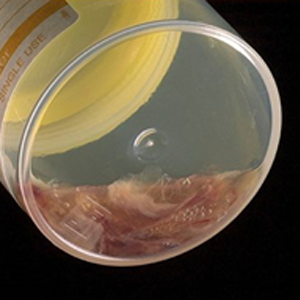
Figure: Blood in Sputum Sample Interferes with PCR
Resources
Fullscreen
