

Overview of the Patient Management Workflow in Nikshay
ContentNikshay is an integrated Information, Communication and Technology (ICT) platform adopted by the National Tuberculosis (TB) Elimination Programme (NTEP) for TB patient management and care.
The patient management workflow in Nikshay streamlines a series of activities required for TB patients from identification of presumptive TB cases to recording treatment outcomes. Nikshay uses in-built modules in the platform to perform these tasks. There are also different user logins that allow certain functions (see figure below).
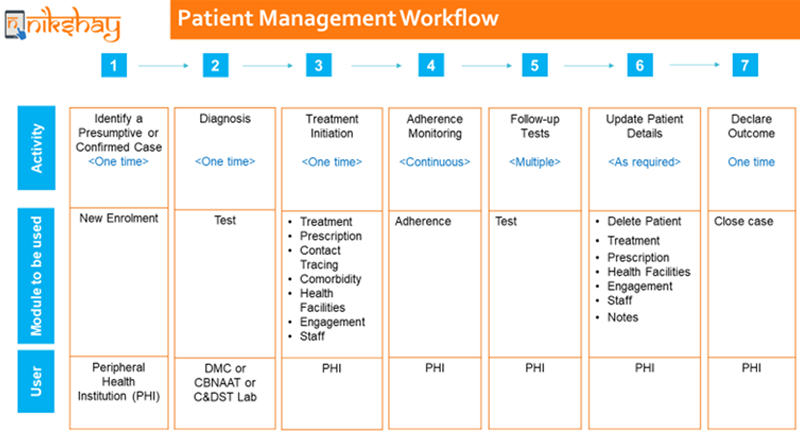
Figure: Overview of the TB Patient Management Workflow in Nikshay; Source: Module 1: Introduction to Nikshay

Summary of the Patient Management Workflow in Nikshay
STEPS ACTIVITY AND NIKSHAY MODULE DETAILS 1 Identify a presumptive or confirmed TB case and notify that case using the New Enrolment Module.
- A Nikshay ID will be generated for the patient upon enrolment, which will be unique and used for the entire TB care life cycle of that patient.
2 Request for diagnostic tests using the Test Module.
- On receiving test results, update it using the patient’s Nikshay ID, irrespective of whether they are positive or negative.
- Once diagnosed positive for TB, notify the patient as a confirmed TB case.
3 Initiate treatment by entering treatment information in Treatment Prescription, Contact Tracing, Comorbidity, Health Facilities, and Engagement Staff Modules. 4 Enter adherence monitoring details in the Adherence Module. 5 Request for follow-up tests using the Test Module. Update test results using same processes in Step 2. 6 Update patient details as required using Modules like Delete Patient, Treatment, Prescription, Health Facilities, Engagement, Staff, Notes. 7 Declare outcome upon receiving treatment outcome details of patient in the Close Case Module. Resources
Kindly provide your valuable feedback on the page to the link provided HERE
Patient management in Nikshay
ContentVideo fileVideo: Patient Management in Ni-kshay
Enrolling a patient in Nikshay
ContentVideo fileDeduplication while enrolling a new patient
ContentVideo fileVideo: Deduplication while enrolling a new patient - Web
Video fileVideo: Deduplication while enrolling a new patient - Mobile
Searching and viewing patient lists
ContentVideo fileVideo: Searching and viewing patient lists
Requesting a Test on Nikshay
ContentOnce a presumptive TB patient is identified, the patient is enrolled online by a healthcare worker or doctor in Nikshay online portal. For diagnosis of Tuberculosis, the treating physician can request a test utilizing the request test option of Nikshay online portal. The step-by-step approach for test request is as follows:
Step 0: Go to the Patients Page.
Step 1: Select the “Tests” tab.
Step 2: Click the “Add Test” button.
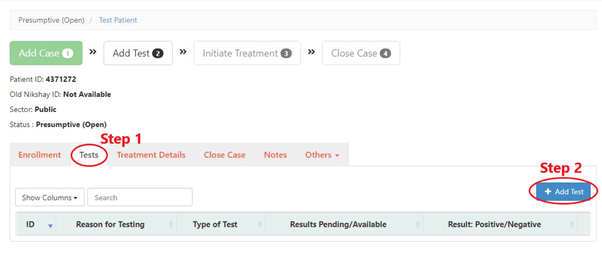
Step 3: Fill the form.
Step 4: Select the “Test Status” as “Results Pending”.
Step 5: Click the “Add Test” button by selecting the appropriate test for the patient.
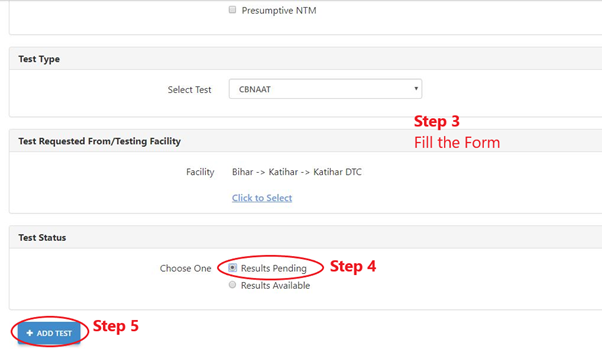
In a situation where the patient is referred to another health facility for TB testing, one needs to select the test requested along with the facility name where the patient will visit for undergoing the TB test. the results are added by the concerned healthcare worker only after the test is conducted and the result is available.
In the absence of such results, it will show ‘Result pending’ instead of ‘Result available’ status.
Video fileVideo: Process to add tests on Ni-kshay
Resources
Kindly provide your valuable feedback on the page to the link provided HERE
Add comorbidity
ContentVideo fileVideo: Add Comorbidity in Ni-kshay - Web
Video fileVideo: Add Comorbidity in Ni-kshay - Mobile App
Unified Patient Page
ContentVideo fileVideo: Unified Patient Page
Task List on Ni-kshay
ContentVideo fileVideo:
Task List (Web)
Video fileVideo: Task List on Ni-kshay - Mobile
Fullscreen